Have you ever tried connecting to Wi-Fi and seen a prompt asking for a network security key? You are not alone. Millions of people search for this every day — on Windows 10, Android phones, laptops, routers, Xfinity, Starlink, Spectrum, T-Mobile, and even HP printers.
At FutureCyber.it, we believe cybersecurity should be simple for everyone. That is why we created this complete 2026 guide that answers every question about the network security key — what it is, where to find it, how to use it, and how to fix common errors.
By the end of this guide, you will never be confused by the “Enter the network security key” prompt again.
Table of Contents
What Is the Network Security Key?
A network security key is the password that protects your wireless network. It is a combination of characters — letters, numbers, and symbols — that encrypts the data traveling between your device and your router.
Think of it like a digital lock on your Wi-Fi. Without the correct key, no unauthorised person can connect to your network or intercept your data.
There are three main types of network security keys used today:
| Type | Description | Security Level |
|---|---|---|
| WEP (Wired Equivalent Privacy) | Oldest and weakest type | ❌ Very Weak |
| WPA (Wi-Fi Protected Access) | Improved security over WEP | ⚠️ Moderate |
| WPA2/WPA3 | Current standard — strongest protection | ✅ Very Strong |
Most modern routers use WPA2 or WPA3 by default. Always make sure your router is set to WPA2 or WPA3 for maximum protection.
Is Network Security Key the Same as Wi-Fi Password?
Yes — in most cases they are exactly the same thing.
When your device asks for a network security key, it is asking for your Wi-Fi password. The term “network security key” is the technical name used by Windows and routers, while most people simply call it a Wi-Fi password.
| Term | Same Thing? |
|---|---|
| Network Security Key | ✅ Yes |
| Wi-Fi Password | ✅ Yes |
| Wireless Key | ✅ Yes |
| WPA Key | ✅ Yes |
| Network Passphrase | ✅ Yes |
| Hotspot Password | ✅ Yes |
The only difference is context. On Windows, it shows as “network security key.” On your phone, it shows as “Wi-Fi password.” On your router sticker, it may say “WPA Key” or “Wireless Key.” They all mean the same thing.
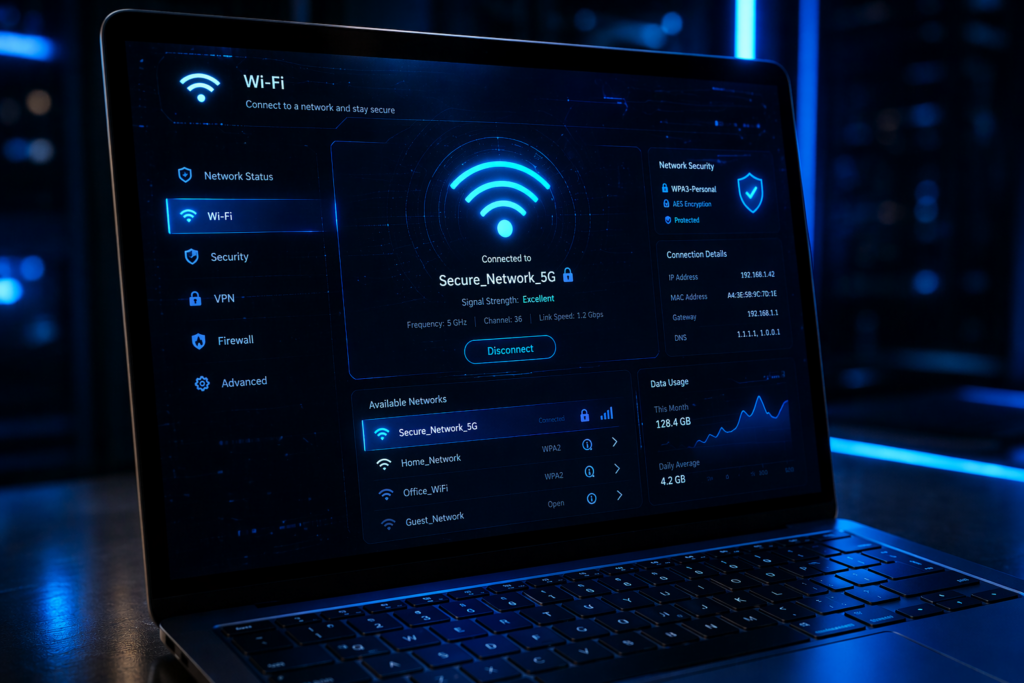
Example of a Network Security Key
Here are some real-world examples of what a network security key looks like:
| Type | Example |
|---|---|
| Simple password | MyHome2026 |
| Complex WPA2 key | Xk9#mP2$qL7@nR4! |
| Default router key | a1b2c3d4e5f6g7h8 |
| Numeric only | 12345678 |
| Hotspot key | FutureCyber@2026 |
| Mixed characters | Blue$Sky#99!Net |
⚠️ Security Tip from FutureCyber.it:
Always use a complex key with uppercase letters, lowercase letters, numbers, and symbols. Never use your name, birthday, address, or the word “password” as your network security key. A strong key should be at least 12 characters long.
What Is the Network Security Key on Windows 10?
Finding your network security key on Windows 10 is simple. Follow these steps:
Step 1: Click the Wi-Fi icon in the bottom right taskbar Step 2: Click Network & Internet Settings Step 3: Click Change adapter options Step 4: Right-click your Wi-Fi network and select Status Step 5: Click Wireless Properties Step 6: Go to the Security tab Step 7: Check Show characters to reveal your network security key
| Step | Action |
|---|---|
| 1 | Click Wi-Fi icon in taskbar |
| 2 | Open Network & Internet Settings |
| 3 | Click Change adapter options |
| 4 | Right-click Wi-Fi → Status |
| 5 | Click Wireless Properties |
| 6 | Go to Security tab |
| 7 | Check Show characters |
Alternative method using Command Prompt: Open Command Prompt as administrator and type: netsh wlan show profile name="YourWiFiName" key=clear Look for the Key Content field — that is your network security key.
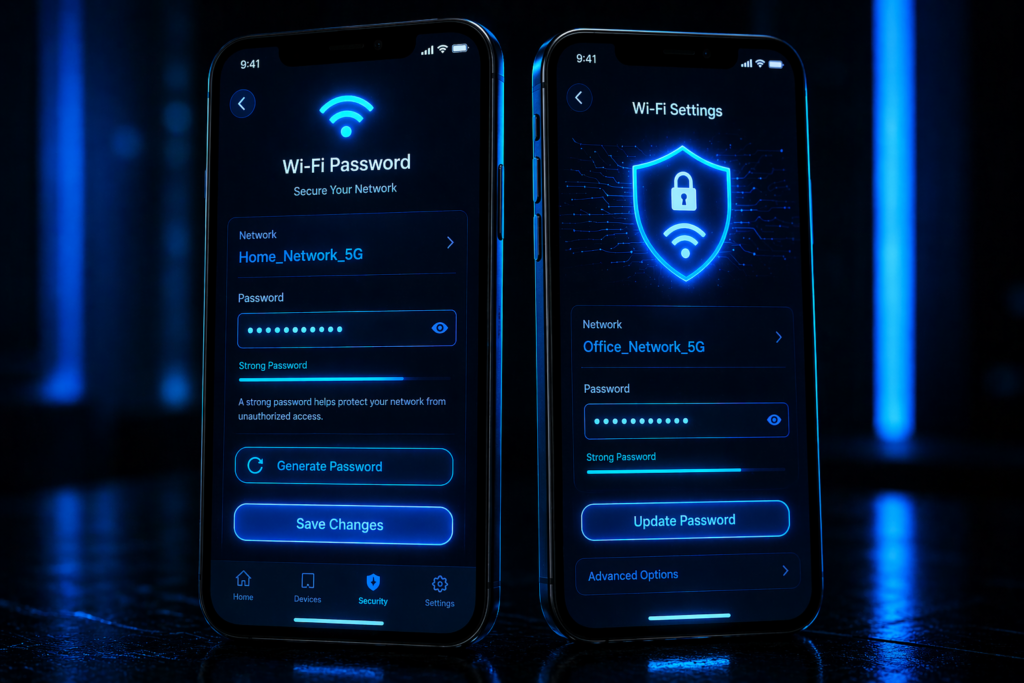
Where to Find Network Security Key on Phone
Android
Step 1: Go to Settings Step 2: Tap Wi-Fi or Connections Step 3: Tap your connected network Step 4: Tap Share or QR Code Step 5: Verify with fingerprint or PIN — your password appears below the QR code
Note: On older Android versions (below Android 10), you may need a third-party app like WiFi Password Show to retrieve saved passwords.
iPhone (iOS 16+)
Step 1: Go to Settings Step 2: Tap Wi-Fi Step 3: Tap the info icon (i) next to your network Step 4: Tap Password and authenticate with Face ID or Touch ID
What Is a Network Security Key on a Laptop?
On a laptop, the network security key works the same way as on a desktop — it is the Wi-Fi password stored in your system. On Windows laptops, follow the Windows 10 steps above. On Mac laptops:
Step 1: Open Spotlight Search (Cmd + Space) Step 2: Type Keychain Access and open it Step 3: Search for your Wi-Fi network name Step 4: Double-click it and check Show Password Step 5: Enter your Mac admin password to reveal the key
| Laptop Type | Where to Find Key |
|---|---|
| Windows 10/11 | Network Settings → Wireless Properties → Security tab |
| MacBook | Keychain Access → Search network name → Show Password |
| Chromebook | Settings → Wi-Fi → Network info icon |
| Linux | Network Manager → Wi-Fi Security tab |
What Is the Network Security Key on the Router?
Your router has a default network security key printed on it. Look for a sticker on the back or bottom of your router. It is usually labelled as:
- Password
- Wi-Fi Password
- WPA Key
- Wireless Key
- Network Key
| Router Brand | Label Name | Admin Panel |
|---|---|---|
| TP-Link | Wireless Password | 192.168.0.1 |
| Netgear | WiFi Password | 192.168.1.1 |
| Linksys | Wi-Fi Password | 192.168.1.1 |
| ASUS | WPA Key | 192.168.1.1 |
| Huawei | WLAN Key | 192.168.3.1 |
| D-Link | Wi-Fi Password | 192.168.0.1 |
💡 If you have changed your router password and forgotten it, log in to your router admin panel using the IP address above in your browser. Use the default admin username and password printed on the router sticker.
What Is the Network Security Key for Wi-Fi Providers?
Xfinity
Your Xfinity network security key is printed on your Xfinity Gateway router label. You can also find it in the Xfinity app under Wi-Fi settings or by logging into xfinity.com/myaccount. To change it, log into your Xfinity account and go to Internet → Your Gateway → Edit Wi-Fi.
Starlink
Your Starlink network security key is set during the initial setup via the Starlink app. You can view or change it anytime in the app under Wi-Fi Settings → Edit. Starlink uses WPA2 encryption by default for maximum security.
Spectrum
Your Spectrum network security key is on the sticker on your Spectrum router. You can also find it by logging into 192.168.1.1 in your browser using your router admin credentials or through the My Spectrum app.
T-Mobile
Your T-Mobile Home Internet security key is set in the T-Mobile Home Internet app or on your gateway device label. Log in at 192.168.12.1 to access router settings and view or change your password.
| Provider | Where to Find Key | How to Change |
|---|---|---|
| Xfinity | Router label or Xfinity app | Xfinity account → Internet → Gateway |
| Starlink | Starlink app → Wi-Fi Settings | Starlink app → Edit |
| Spectrum | Router label or 192.168.1.1 | My Spectrum app |
| T-Mobile | Gateway label or T-Mobile app | 192.168.12.1 |
What Is the Network Security Key for Hotspot?
When you turn your phone into a mobile hotspot, it creates its own network security key. Here is how to find it:
Android Hotspot
Go to Settings → Mobile Hotspot → Show Password
iPhone Hotspot
Go to Settings → Personal Hotspot — the password is displayed directly on screen
Windows 10 Mobile Hotspot
Go to Settings → Network & Internet → Mobile Hotspot — the network password is shown directly on the page
💡 You can change your hotspot network security key anytime from the same settings page. Always use a strong password for your hotspot, especially in public places, to prevent unauthorised users from connecting.
What Is the Network Security Key for HP Printer?
When connecting an HP printer to Wi-Fi, it will ask for a network security key. This is simply your Wi-Fi password. Here is how to connect:
Step 1: On your HP printer, go to Settings → Wireless Setup Wizard Step 2: Select your Wi-Fi network name (SSID) Step 3: Enter your network security key (Wi-Fi password) Step 4: Press OK or Connect
| HP Printer Model | Connection Method |
|---|---|
| HP DeskJet | Wireless Setup Wizard in Settings |
| HP LaserJet | Control Panel → Network → Wireless Setup |
| HP OfficeJet | Settings → Wireless → Wireless Setup Wizard |
| HP ENVY | Settings → Wi-Fi → Setup Wizard |
If your HP printer shows “Enter the network security key,” it is simply asking for your Wi-Fi password. Make sure you are entering the correct password with the right capitalisation.
Enter the Network Security Key — Common Errors and Fixes
| Error | Cause | Fix |
|---|---|---|
| Wrong password | Mistyped key | Check router label and retype carefully |
| Caps Lock on | Wrong capitalisation | Turn off Caps Lock and retype |
| Changed password recently | Old key saved | Use the new password you set |
| Router was reset | Factory default restored | Use default key from router sticker |
| Special characters issue | Keyboard input error | Copy-paste the key instead of typing |
| Network not found | Wi-Fi band mismatch | Try connecting to 2.4GHz instead of 5GHz |
| Key accepted but no internet | ISP issue | Restart router and contact your ISP |
How to Change Your Network Security Key
Changing your network security key regularly is a good cybersecurity habit. Here is how:
Step 1: Open your browser and go to your router admin panel (usually 192.168.1.1 or 192.168.0.1)
Step 2: Log in with your router admin username and password
Step 3: Go to Wireless Settings or Wi-Fi Settings
Step 4: Find the Password or WPA Key field
Step 5: Enter your new strong password
Step 6: Click Save or Apply
Step 7: Reconnect all your devices with the new key
🔐 FutureCyber.it recommends changing your network security key every 3 to 6 months and never sharing it with people you do not fully trust.
How Strong Should Your Network Security Key Be?
| Strength | Example | Safe? |
|---|---|---|
| Very Weak | 12345678 | ❌ Never use |
| Weak | password123 | ❌ Avoid |
| Moderate | MyHome2026 | ⚠️ Acceptable |
| Strong | Blue$Sky#99!Net | ✅ Good |
| Very Strong | Xk9#mP2$qL7@nR4! | ✅ Excellent |
A strong network security key should have at least 12 characters, include uppercase and lowercase letters, contain numbers and special symbols, and avoid dictionary words or personal information.

People Also Search
Q: What is the network security key for my router? A: Your router’s network security key is the Wi-Fi password printed on the sticker on the back or bottom of your router. It is usually labelled as WPA Key, Wi-Fi Password, or Wireless Key. If you have changed it, log into your router admin panel at 192.168.1.1 to find the updated key.
Q: How to find network security key on Android without QR code? A: On older Android versions that do not show a QR code, go to Settings → Wi-Fi → Long press your network name → Manage Network Settings → Show Password. On some devices you may need to enable developer options or use a file manager app to access saved Wi-Fi passwords in the system folder.
Q: Network security key vs Wi-Fi password — what is the difference? A: There is no real difference. The network security key and Wi-Fi password are the same thing. Windows uses the technical term “network security key” while smartphones and routers typically call it a Wi-Fi password or wireless password.
Q: What is a WPA2 network security key? A: A WPA2 network security key is a Wi-Fi password that uses WPA2 (Wi-Fi Protected Access 2) encryption — the most widely used security standard today. It encrypts all data between your device and router, making it much harder for hackers to intercept your connection. WPA3 is the newest and strongest standard, gradually replacing WPA2.
Q: How to change network security key on router? A: Log into your router admin panel at 192.168.1.1 or 192.168.0.1 in your browser. Go to Wireless Settings → Password or WPA Key field. Enter your new password and click Save. Reconnect all your devices with the new key.
Q: Network security key not working — how to fix? A: First check that Caps Lock is off and you are typing the key correctly. If it still does not work, check the router sticker for the default key. If you changed the password recently, use the new one. If all else fails, reset your router to factory settings by holding the reset button for 10 seconds and use the default key from the sticker.
Q: What is the network security key on iPhone? A: On iPhone running iOS 16 or later, go to Settings → Wi-Fi → tap the info icon (i) next to your connected network → tap Password → authenticate with Face ID or Touch ID to reveal your network security key.
Q: What is the default network security key for TP-Link router? A: The default network security key for TP-Link routers is printed on the sticker on the bottom of the router, usually labelled as “Wireless Password.” You can also find it by logging into the TP-Link admin panel at 192.168.0.1 using the default username “admin” and password “admin.”
Q: How to find network security key without router access? A: If you are connected to the Wi-Fi on a Windows PC, go to Network Settings → Change adapter options → Right-click your network → Status → Wireless Properties → Security tab → Show characters. On Android, go to Settings → Wi-Fi → tap your network → Share → your key appears below the QR code. On Mac, open Keychain Access and search for your network name.
Q: What does a network security key look like? A: A network security key looks like a password — a string of letters, numbers, and symbols. It can be as short as 8 characters or as long as 63 characters. Default router keys often look like random strings such as “a1b2c3d4e5f6g7h8” while user-created keys might look like “MyHome@2026!”
FAQ
Q1: What is the network security key on Windows 10?
On Windows 10, the network security key is your saved Wi-Fi password. Find it by going to Network Settings → Change adapter options → Right-click Wi-Fi → Status → Wireless Properties → Security tab → Show characters.
Q2: Where to find network security key on phone?
On Android, go to Settings → Wi-Fi → tap your network → Share → the key appears below the QR code. On iPhone (iOS 16+), go to Settings → Wi-Fi → tap the info icon → tap Password
Q3: What is a network security key on a laptop?
On a laptop, the network security key is your Wi-Fi password stored in the system. On Windows, find it via Network Settings. On Mac, find it via Keychain Access.
Q4: What is the network security key on the router?
It is the default Wi-Fi password printed on a sticker on the back or bottom of your router. It is usually labelled as WPA Key, Wi-Fi Password, or Wireless Key.
Q5: Is network security key same as Wi-Fi password?
Yes. The network security key and Wi-Fi password are exactly the same thing. Windows uses the technical term while most devices call it a Wi-Fi password.
Q6: What is an example of a network security key?
Examples include simple passwords like MyHome2026, complex WPA2 keys like Xk9#mP2$qL7@nR4!, or default router keys like a1b2c3d4e5f6g7h8.
Q7: How do I enter the network security key?
When your device prompts “Enter the network security key,” simply type your Wi-Fi password. If you do not know it, check the sticker on your router or follow the steps above for your specific device.
Q8: What is the network security key on Android?
On Android, go to Settings → Wi-Fi → tap your connected network → tap Share or QR Code → authenticate with PIN or fingerprint. Your network security key appears as text below the QR code.
Conclusion
The network security key is one of the most searched yet most misunderstood terms in everyday technology. Whether you are setting up Wi-Fi on Windows 10, connecting an HP printer, checking your Xfinity, Starlink, Spectrum, or T-Mobile password, or sharing your Android hotspot — it all comes down to the same thing: your Wi-Fi password that keeps your network safe and your data protected.
Remember, a strong network security key is your first line of defence against unauthorised access and cyber threats. Change it regularly, keep it complex, and never share it with people you do not trust.
At FutureCyber.it, we are committed to making cybersecurity simple, practical, and accessible for everyone — from beginners to advanced users. Bookmark this guide, share it with friends and family, and come back whenever you have a cybersecurity question.